Setting Up Your Dashboard
Configure Check Tags
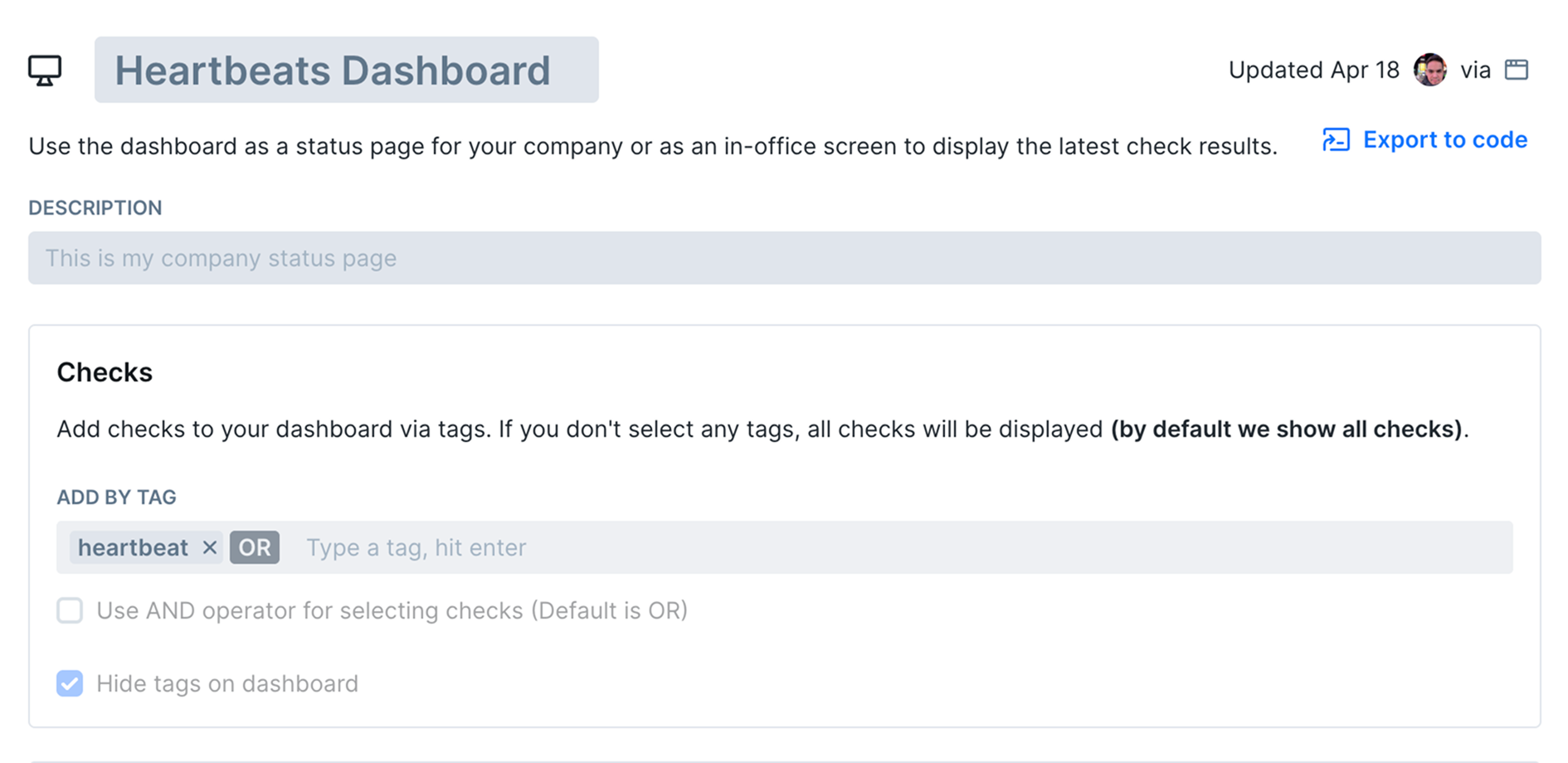
Add relevant tags to the checks you want to display on your dashboard
Create Dashboard
Set up a new dashboard and configure basic settings
Apply Tag Filters
Specify which tags should determine dashboard content
Customize Appearance
Configure branding, colors, and layout options
Set Up Custom Domain
Optionally configure a custom domain for professional branding
Test and Share
Verify dashboard functionality and share with intended audience
Dashboard Privacy and Access Control
By default, Checkly dashboards are public and accessible to anyone with the URL. You can restrict access by enabling password protection or Checkly account authentication.
Plan Requirements: Private dashboards are available on Team and Enterprise plans. Checkly account login is exclusive to Enterprise customers.
Setting Up Password Protection
Navigate to Dashboard Settings
Go to the dashboard you want to protect and access its settings
Enable Password Protection
Toggle on password protection and click “Save” to apply changes
Generate Password
Click the “Generate Password” button that appears after saving
Secure Your Password
Copy the password from the modal - this is the only time you’ll see it in plaintext
Important: We don’t store passwords in plaintext. If lost, you’ll need to generate a new password and update all users with the new credentials.
Accessing Protected Dashboards
Protected dashboards work with both access methods:
Password Authentication (Team and Enterprise plans)
- Available on custom domains and default
https://[dashboardId].checkly-dashboards.com URLs
- Use the generated password to access the dashboard
Checkly Account Login (Enterprise only)
- Available only on default
https://[dashboardId].checkly-dashboards.com URLs
- Click “Login with Checkly” and sign in with your existing account
- Supports all authentication methods (Google, GitHub, username/password)
Remember that dashboards are public by default. Always review which checks and data you’re exposing before sharing dashboard URLs with external audiences.